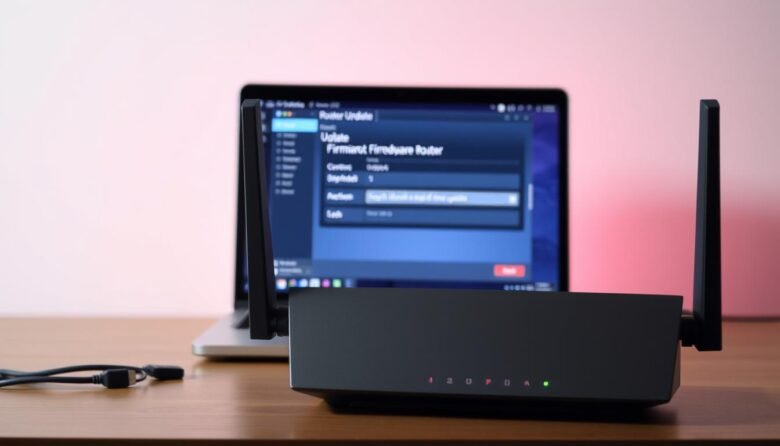
Keeping your home network secure and steady starts with timely maintenance. A quick router firmware update can close security holes, fix bugs, and keep every connected device running smoothly.
Start by opening a web browser and typing your router’s IP address in the address bar. Enter your username and password to access the admin dashboard, then find the Firmware or Update area under Administration or Management.
Download the exact file for your model from the manufacturer’s support site and extract it on your computer. On the update page click Choose File or Browse, select the image, and start the process.
Do not power off the device or close the browser while the update runs. When it finishes, reboot and log in again to confirm the new version on the Status or About page. A short maintenance window at home makes this simple task low impact and high value.
Key Takeaways
- Security and stability: updates protect your home network and devices.
- Use a web browser and enter the router address to enter login credentials.
- Only use the exact firmware file for your model from the support site.
- Do not interrupt the process; a lost connection can corrupt the image file.
- Reboot and check the status page to confirm successful updates.
Why updating router firmware matters right now
Keeping your home network current stops many threats before they reach your devices.
The first reason to act now is security. New releases include patches that close holes attackers use today.
Security and stability: blocking new threats in the present day
Applying a current firmware version helps block exploits that circulate quickly. Vendors may mark a release as required to fix crashes or dropped connection events, so accept those prompts when you see them.
Performance boosts for your home internet and Wi‑Fi devices
Fresh code often improves memory use, radio tuning, and QoS. That makes video calls smoother and pages load faster across many device types.
- Security patches: close loopholes attackers exploit and protect logins and data.
- Stability fixes: stop random reboots and stabilize the system under load.
- Performance gains: better coordination among Wi‑Fi clients reduces retries and keeps streaming services reliable.
- Manual fallback: if automatic checks fail, download the package from the support site and apply it yourself.
Prep first: what to check before you start the update
Before you touch any settings, gather the login info and product details you’ll need. Have the IP address, username, and password handy so signing in from a web browser goes smoothly. Only reset to default if you cannot recover the login; a reset erases custom settings.
Confirm the exact model and hardware version printed on the label. Visit the product support page and match the model number and hardware revision to the listed files. TP‑Link and other vendors often require selecting the right hardware version to avoid compatibility issues.
Download the correct ZIP file from the vendor support page and extract it on your computer so the image file is ready. Check release notes on the product page and back up current settings in the settings menu before you proceed.
- Keep a stable internet connection for downloading instructions and packages.
- Set aside uninterrupted time; power loss during writing can corrupt the image file.
- Locate the Firmware or Update section under Advanced, Administration, or Management in the web dashboard—this is the section where you’ll upload the file.
Router firmware upgrade: step-by-step methods that work
A safe update starts with choosing auto, web GUI, or a manual file upload. Pick the path that matches your skill level and the tools you have on hand.
- Option A — Auto: Approve the prompt in the app or on the device when a required version appears. This is the easiest path and lowers the chance of selecting the wrong package.
- Option B — Web GUI: In a web browser go to the device IP address, enter your username password, open Administration/Management and choose the Firmware/Update page. Follow on-screen buttons to start the process.
- Manual upload: From the vendor support or download center, get the ZIP for your exact model, extract it on your computer, click Choose File/Browse, pick the image file, then press the on-screen button to begin.
Watch the progress screen and status icon. Wait minutes until the bar completes and the page refreshes. Do not power off during the process; an interrupted write can force a safe reset.
After reboot, enter login again and verify the version on the Status/About page. If the device can’t reach the vendor service, use the manual file from the support page. If a step fails, try a soft reboot, then use the reset router pinhole only as a last resort and restore your saved settings.
Keep your network safer going forward
Make a simple habit of checking the device dashboard each month for new releases.
When you see the right‑corner update icon in the web UI, apply the update during a quiet time. Export your settings first so you can restore quickly if something goes off script.
After the install, verify the version on the status screen and allow a few minutes for the reboot and process to finish. Run a quick internet or wifi check to confirm everything feels normal at home.
Keep a bookmark to the product support page and use vendor FAQs or download centers for recovery help if a step fails. With steady checks, cautious resets, and strong admin hygiene, your router firmware stays current and your system stays safer.