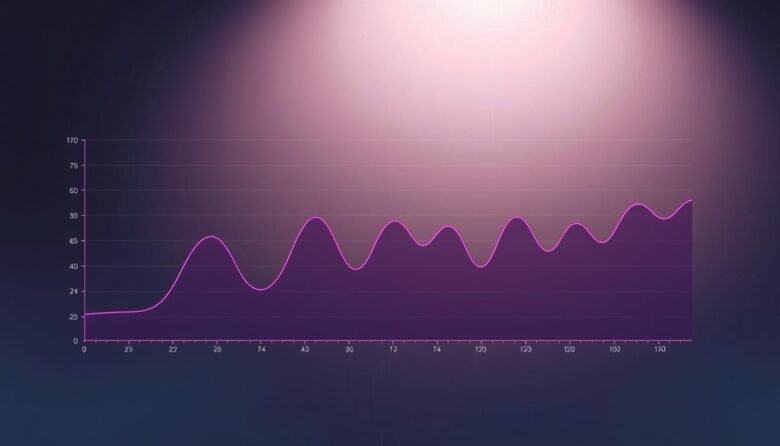
High FPS does not guarantee smooth play. A game can report 60 frames per second yet feel choppy if frame times jump from ~16.7 ms to 50–100 ms. That spike is what makes the screen hitch.
We’ll show why reported frame rate and perceived smoothness can diverge. You’ll learn how to read simple real-time data — CPU load, GPU use, RAM/VRAM, temps, and frame-time graphs — so you can find the true bottleneck.
Expect quick wins first: clean graphics driver installs, disabling overlays, smarter frame caps, and installing games on an SSD. Then we’ll move to settings and system changes that prioritize consistent performance over flashy numbers.
By focusing on frame time consistency and targeted solutions, you’ll stop guessing and start solving the cause stuttering in your system. This guide will give a clear playbook you can follow now.
Key Takeaways
- Frame time consistency matters more than raw FPS for smooth play.
- Use overlays and driver clean installs as quick, high-impact fixes.
- Monitor CPU, GPU, RAM/VRAM, and temps to find the real bottleneck.
- Cap FPS slightly below refresh rate for steadier output.
- Install games on an SSD and tune Windows power for stable performance.
Why 60 FPS Can Still Stutter: Frame Time Variance Explained
A steady frame cadence, not the headline FPS number, decides whether play feels smooth or jittery.
Smooth 60 FPS means frames land roughly every 16.7 ms. If one frame jumps to 50–100 ms, that single hiccup makes the whole scene feel choppy even though the counter still reads 60+
Use real-time overlays to watch frame time graphs and correlated data like per-core CPU, GPU load, temps, and RAM use. If a core hits 100% while the GPU sits under ~95%, the CPU is likely the bottleneck.
- Think of smooth output as a metronome: steady beats win over high numbers.
- Shader compilation or updates often cause early-run hitches; let compilation finish and enable GPU shader cache.
- Background Windows activity can add scheduling noise that causes micro-hitches.
- Changing resolution or settings shifts load between cpu gpu and alters frame pacing.
When the GPU is below ~95% during visible stuttering, look upstream at CPU, storage, or OS scheduling as the probable cause. That mental model makes later solutions much easier to apply.
Five-Minute Wins: Quick Stuttering Fixes That Work
Quick steps can eliminate frequent frame-time spikes without deep tuning. Try these fast, high-impact measures before diving into advanced diagnostics. Each one takes only a few minutes and often restores steady playback right away.
Do a clean graphics driver install with DDU
Download the latest NVIDIA or AMD package, boot to Safe Mode, run DDU to remove old drivers, then reinstall the fresh package. This clears corrupt profiles that cause frame-time spikes and helps update graphics drivers cleanly.
Disable overlays and background apps
Turn off Discord, GeForce Experience overlay, Steam overlay, Xbox Game Bar, and RGB tools. Close extra programs in Task Manager so background processes don’t interrupt frame delivery.
Cap frame rate and set power to High Performance
Limit FPS to your refresh rate minus three (e.g., 141 on 144 Hz) via in-game limiter, driver, or RTSS. Then set Windows Power Options to High Performance and plug in laptops, setting GPU to maximum performance.
Clear standby memory and move games to SSD
Use ISLC cautiously to free standby memory (example: 2048 MB threshold for 16 GB). Install or move games to an SSD and lower CPU-heavy settings like shadows or NPC density to reduce CPU main-thread load.
- Close resource-hogging programs and raise game process priority if needed.
- If problems persist, recheck your driver download and reapply a frame cap at the driver level.
Real-Time Diagnostics: See What’s Spiking When You Stutter
Seeing live sensor data makes it easy to spot what spikes when play feels uneven. Build a simple in-game overlay with HWiNFO64 (Sensors-only) and MSI Afterburner so you can watch metrics the moment a hitch appears.
Set up HWiNFO64 and MSI Afterburner OSD
Install HWiNFO64 in Sensors-only mode and enable the values you want to export. In MSI Afterburner, enable the OSD and turn on the frame time graph as a visible graph.
What to watch on screen
- Per-core CPU usage and the frame time graph — spikes line up with felt hitches.
- Total GPU usage, clocks, temps, and RAM/VRAM levels.
- Storage activity, Windows Task Manager Details tab, and background processes.
Reading the signs
If one core hits 100% while GPU usage drops, the cpu is the bottleneck. If the GPU stays near 99% you’re GPU-limited and should lower resolution or settings.
Temps above ~90°C indicate likely thermal throttling. If RAM/VRAM max out, asset swapping causes sudden pauses. Capture a minute of data during a bad stutter to compare against normal play and pinpoint the root cause.
Targeted Fixes by Bottleneck: CPU, GPU, RAM/VRAM, Storage
Pinpoint the subsystem that spikes in your overlay, then apply targeted changes to calm frame times.
CPU-bound: If one core sits at 100% while the GPU is underused, lower main-thread loads first.
CPU adjustments
Drop heavy options like shadows, crowd density, AI counts, and physics. Close browser tabs and background apps that wake threads.
Then set the game process to High priority in Task Manager and re-test with your overlay.
GPU adjustments
If the GPU is pegged and frame times wobble, step down resolution, post-processing, and texture quality until the load is steady.
Watch the frame graph: a smoother line after small changes means you hit the right graphics target.
RAM/VRAM and storage
Enable XMP/DOCP/EXPO in BIOS so RAM runs at rated speed. Reduce texture resolution and close background tabs to prevent asset swaps.
Move large titles to an SSD to cut streaming stalls that show as sudden pauses on the screen.
- Adjust one setting at a time and record the result.
- Use overlay data to confirm which subsystem improved.
- Prioritize changes that reduce main-thread work or VRAM pressure first.
Windows and Driver Optimizations You Shouldn’t Skip
Clean software paths and sensible Windows settings cut a lot of timing noise. Small driver errors or background programs can interrupt frame delivery and cause visible hitches. Tackle the software layer first to make later tuning more effective.
Clean driver workflows for NVIDIA/AMD and audio
Use DDU in Safe Mode to remove old graphics drivers, then install the latest NVIDIA or AMD package. A clean driver workflow eliminates lingering conflict that leads to stuttering issues.
Also update audio drivers. Faulty audio software can create timing hiccups, so refresh or reinstall audio drivers when you suspect timing conflicts.
Trim startup/background programs and set game priority
Disable Xbox Game Bar and background recording in Windows Settings to avoid surprise CPU wakeups. Open Task Manager and end resource-heavy processes and startup programs.
- Set your game’s process to High priority in the Details tab so frames aren’t preempted by low-value tasks.
- Keep Windows on the High Performance power plan to avoid power-saving dips that hurt stability.
- Test overlays with them disabled; only re-enable those proven harmless in your setup.
After each driver or Windows update, validate stability in a known stress scene and capture data. If new issues appear, roll back the driver. Keep a simple update checklist per game so you can reproduce optimal settings quickly.
In-Game Settings That Smooth Frame Delivery
The right mix of quality and limits keeps frames arriving on time and the screen calm.
Start with heavy hitters: drop texture quality and draw distance one notch. This reduces VRAM and streaming pressure that often causes game stuttering.
If the title supports shader pre-compilation, enable it and let compilation finish before play. That frontloads work so shaders don’t cause mid-match hiccups.
Cap the frame rate just below your display’s refresh rate (refresh-3). A modest cap keeps pacing steady and keeps VRR in its sweet spot.
- Pair VRR (G-Sync/FreeSync) with a small cap to avoid VSync-induced latency.
- Test DX11 if DX12 shows inconsistent frame times; some engines run smoother on the older API.
- Prefer exclusive fullscreen to limit OS interruptions and give the GPU a predictable path.
Trim heavy post-processing like SSAO or depth of field; these can spike GPU load even with similar averages. If needed, lower resolution slightly or use an upscaler to improve steady delivery.
After any update, re-test a short scene and note the combo (API + cap + VRR + key settings) that produced the best performance and least stuttering.
Heat and Power: Stutter from Throttling and Inconsistent Clocks
Heat and inconsistent clocks quietly turn steady frame delivery into sudden hitches during longer game sessions. Temperatures under sustained load change how the CPU and GPU behave, and that impacts smoothness on the screen. Monitor sensors in real time to spot when clocks fall and timing drifts.
Monitor temps and fix airflow
Watch CPU and GPU temperatures while you play. Readings near or above ~90°C often trigger frequency drops that create visible stuttering.
Clean dust from filters and fans. Ensure intake and exhaust are clear and case pressure is balanced for steady airflow.
Thermal maintenance best practices
If your cooler paste is older than two years, reapply it and confirm correct mounting. Poor contact or dried paste lets temps spike quickly under load.
Adjust fan curves so fans ramp earlier during sustained play. Proactive cooling keeps clocks stable and reduces timing noise.
Laptop tips for sustained performance
Always play plugged in and set Windows to High Performance. In the GPU control panel, choose maximum performance to avoid power-saving clock drops.
Keep laptops on hard, flat surfaces and avoid soft bedding that blocks intakes. For some chips, a modest undervolt can cut heat without harming visible performance—test stability carefully.
- Watch when hitches appear: if they start after 15–20 minutes, heat buildup is likely the cause of stuttering issues.
- Lower ambient room temperature when possible; a cooler room improves sustained performance.
- Re-test the same game scene after thermal work; a flatter frame-time trace on the screen shows success.
Advanced and Last-Resort Solutions
When mild tweaks no longer help, deeper system changes can remove hard-to-find timing problems.
Start with memory and clock stability. In BIOS, enable XMP/DOCP/EXPO so your RAM runs at rated speed. Many boards ship at low JEDEC clocks and that can kneecap main-thread performance by 5–10%.
Stabilize clocks and consider undervolting
If you’ve overclocked the cpu or gpu, validate stability with stress tests and telemetry. Dial back unstable profiles or try a mild undervolt to cut heat and timing variance.
Keep a baseline profile for play. Consistent clocks beat occasional peak numbers when the goal is smooth frame delivery.
Clean Windows install for deep software problems
When corruption lurks in the OS, back up critical files and create Windows install media.
Perform a clean install, then install only essential drivers first (chipset, driver, audio). Test a few games and collect data before reintroducing programs.
- Download and save installers for repeatability.
- Consider a larger SSD if space or streaming is a problem; full drives cause asset swaps and game stuttering.
- Document steps, validate results in your test scene, and compare frame consistency before and after.
These solutions take longer but solve deep-rooted problems that quick tweaks cannot. Use them only after simpler remedies are exhausted, and you’ll have reliable, repeatable results.
Stuttering fix PC gaming: A Practical Path to Consistently Smooth Play
Conclude with a simple, repeatable process to chase down timing spikes and restore steady output.
Start with quick wins: do a clean graphics driver install with DDU, disable overlays, cap FPS just below your refresh rate, and set Windows to a High Performance power plan. These steps often stop game stuttering fast.
When issues persist, add an overlay with HWiNFO64 and MSI Afterburner to watch CPU, GPU, RAM, and storage in real time. Then target the subsystem that spikes—adjust settings, trim resolution or textures, and control background processes.
Keep thermals and clocks stable, enable XMP/DOCP if needed, and maintain a short checklist per title. Re-test after every driver or game update; if the frame graph improves and the screen feels smoother, keep the change.