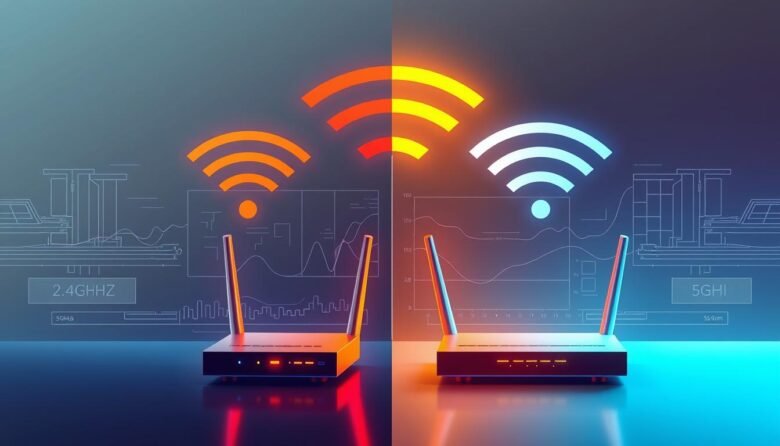
The choice between 2.4 GHz and 5 GHz matters for home wifi. Each band has a clear trade-off: 2.4 GHz reaches farther and penetrates walls better, while 5 GHz delivers faster data and faces less interference.
Everyday devices like microwaves, baby monitors, and some smart plugs crowd the lower band, so that band can feel slower even when it covers more area. Modern routers often broadcast both bands with separate names so you can pick the best option for each device.
For the most stable and fastest link, a wired Ethernet cable still wins. Newer standards such as Wi‑Fi 6, 6E, and 7 add capacity and use the 6 GHz frequency for ultra‑fast but shorter‑range connections. Mesh systems help large or dense homes keep devices connected as you move around.
Key Takeaways
- Pick 2.4 GHz for better range and wall penetration.
- Choose 5 GHz when you need higher speed and less local interference.
- Dual‑band routers let you assign the right band to each device.
- Ethernet provides the most reliable internet performance.
- Wi‑Fi 6/6E/7 and 6 GHz improve speed but need compatible devices.
- Use mesh systems for seamless roaming in large homes.
What “2.4GHz vs 5GHz” Really Means for Your Home Wi‑Fi Today
Understanding how different wireless frequency bands work helps you pick the best option for each room in your house. In plain terms, one band reaches farther while the other moves data faster.
The lower radio band—often labeled 2.4 ghz—travels through walls and floors better. That gives wider coverage but also more interference from common household gadgets. The higher band delivers higher speeds and faces less local crowding, yet it fades sooner with distance and obstacles.
- Think of bands as lanes: 2.4 ghz is the long, steady lane; the higher lane moves faster but covers less distance.
- Higher ghz frequencies struggle to penetrate walls, so placement and obstacles matter.
- Many smart devices share the lower band, increasing interference and slowing real use.
- Dual‑band and newer routers let your home use both lanes; Wi‑Fi 6E/7 add even more spectrum for busy networks.
Choosing the right band for each device and adding simple fixes—like better router placement or mesh nodes—usually improves your network more than a faster internet plan alone.
2.4GHz vs 5GHz guide: speed, range, interference, and channels
Which wireless band you pick directly affects speed, range, and how often your connection drops.
Speed and bandwidth: The higher ghz band usually delivers faster throughput for gaming, 4K streaming, and large data transfers. Use it for devices near your router when low latency and higher speeds matter.
Range and coverage: The 2.4 ghz band travels farther and penetrates walls better. That makes it more reliable for distant rooms and multi‑floor homes.
- Interference and congestion: Microwaves, baby monitors, and neighboring networks often crowd the 2.4 ghz band, causing interference and slower real‑world speeds.
- Walls and obstacles: Thicker walls cut 5ghz signal strength faster; 2.4 ghz holds up through more obstacles.
- Channel availability: The 2.4 ghz band has few non‑overlapping channels, so overlap is common. The higher band offers many cleaner channels to reduce congestion.
Practical tip: if using 2.4 ghz shows slowdowns, try changing channels or moving the router away from interference. Balance both bands—let nearby, bandwidth‑hungry devices use the higher band while distant or obstructed rooms stick with 2.4 ghz for a steadier connection.
Which devices belong on each band for the best connection
Match devices to the band that suits their needs. Some gear needs steady range, while others need speed and low latency.
Smart home and IoT: Most sensors, smart plugs, thermostats, and basic speakers favor 2.4 ghz. The lower frequency reaches farther through walls and keeps a steady link for battery‑powered devices.
Phones and tablets
Modern phones and tablets are dual‑band and will pick the faster band when near the router. If you move to another room, they may switch to 2.4 ghz to preserve battery and hold the network.
PCs, laptops, and game consoles
Desktops and laptops with newer adapters perform best on 5ghz for higher throughput. Consoles also gain from the extra bandwidth for downloads and video streaming, though Ethernet is best for competitive gaming.
AR/VR headsets, editing rigs, and cameras
High‑bandwidth gear like AR/VR headsets and 4K editing rigs benefit from 5ghz or Wi‑Fi 6E for low latency and smooth video. Many security cameras, however, often do better on 2.4ghz at normal mounting distances for reliable live view and motion captures.
- Rule of thumb: nearby, heavy‑use devices → higher band; distant or battery devices → lower band.
- If a device struggles, try switching bands before replacing hardware.
When to use 2.4GHz vs 5GHz based on space, devices, and activities
Your room layout and daily activities decide whether range or raw speeds matter more. Pick the band that matches where devices live and what they do.
Gaming and videoconferencing: prioritize stable, low‑latency speed
For gaming and video calls, start with Ethernet for the lowest latency. If wired isn’t possible, test ghz 5ghz close to the router for faster speeds and less interference.
Streaming and multi‑room playback
Streaming benefits from the extra headroom of 5ghz when the TV or streamer sits near the router. For steady playback while moving through the home, use 2.4 ghz for wider coverage and better range.
Large homes vs dense apartments
In big houses with walls and floors, use 2.4 ghz to avoid dead zones and add mesh where you need speed back. In dense apartments, 2.4 ghz often shows congestion; favor 5ghz to land on cleaner channels.
- Microwaves can disrupt lower bands—move sensitive gear away from the kitchen.
- If one room is your gaming hub, place the console near the router to unlock 5ghz performance.
- Assign bands by activity: coverage and roaming → use 2.4 ghz; local heavy use → ghz 5ghz.
Router and network settings that make bands perform better
Small changes in router settings can unlock much better wireless performance across your home. These tweaks help your network guide devices to the best frequency and reduce interference from neighbors and appliances.
Dual‑band SSIDs and manual device selection
Name each band separately so you can place devices intentionally on 2.4 ghz or 5ghz. A clear SSID like “Home‑2.4G” makes it easy to keep smart plugs and sensors on the lower band while phones and streaming boxes use the faster band.
Channel selection and scanners
Use your router’s channel scanner or a Wi‑Fi analyzer to find a cleaner channel. Changing channels on the 2.4 ghz band or the higher ghz band often fixes slow speed and poor signal without new hardware.
Band steering, smart connect, and when to plug in Ethernet
Enable band steering or smart connect so capable devices move to the faster band automatically. Leave legacy gear on 2.4 ghz to avoid drops.
- Plug gaming PCs, workstations, and smart TVs into Ethernet for the best stability and highest bandwidth.
- Keep routers central and off the floor to limit interference and improve coverage.
- Record your internet connection and settings so you can revert changes or share them with support.
Looking ahead: Wi‑Fi 6E/7, 6GHz, and whole‑home mesh coverage
Emerging 6 ghz spectrum and Wi‑Fi 7 features are reshaping whole‑home networking. Newer frequency bands bring cleaner airwaves and more channels, but they also change how you plan coverage and device placement.
6GHz basics: ultra‑fast speeds, shorter range, device compatibility
The 6 ghz band offers ultra‑fast speeds and very low latency thanks to wide, clean spectrum. Because the frequency is higher, it has the shortest range and needs clearer line‑of‑sight or extra nodes for full coverage.
Only 6E/7‑capable clients can use 6 ghz, so older gear will stay on 2.4ghz or 5ghz until upgraded.
Wi‑Fi 7 features: more spectrum, MLO, reduced latency
Wi‑Fi 7 adds more channels than 5ghz and introduces Multi‑Link Operation (MLO) to merge bands into a single, faster connection. That reduces latency and improves reliability for cloud gaming, AR/VR, and heavy data loads.
Mesh systems: satellites for seamless roaming and strong signal
Mesh setups deploy a main router and satellite nodes so devices roam without reconnecting. This fills gaps left by high‑frequency bands and keeps bandwidth steady across a larger home.
- 6 ghz = top speeds, limited range.
- MLO links bands for higher throughput and better reliability.
- Mesh nodes hand off connections for consistent coverage and less interference.
Buyer’s checklist: pick the right band, router, and setup right now
An easy plan—map, name, scan, and test—solves most home network headaches fast.
Map your devices and note where each device lives. Assign low‑bandwidth, far‑from‑router gear to 2.4 ghz and keep nearby, heavy‑use devices on 5ghz for better speeds.
Name separate SSIDs like “Home‑2.4G” and “Home‑5G” so each device joins the intended band without guesswork. Run a quick channel scan and set the router to the least crowded channel to reduce interference.
- Ethernet first: plug TVs, consoles, and desktops into wired ports to stabilize your internet connection and free Wi‑Fi bandwidth for mobile devices.
- Fix coverage: try better router placement or a mesh system before upgrading service; mesh often restores uniform coverage faster than a new plan.
- Check compatibility: older devices may only use 2.4 ghz; only Wi‑Fi 6E/7 clients can reach 6 GHz, so match hardware to frequency.
Keep a short log of SSID names, channels, and passwords. Small tests—like moving a laptop closer or moving a smart display to 2.4 ghz—often deliver the biggest gains in data speed and reliability.
Your next step to faster, more reliable Wi‑Fi
Ready to fix slow spots and get the most from your home wifi in minutes? Small, targeted moves often give the biggest gains.
Start simple: name your bands, put high‑demand devices on 5ghz and long‑range or battery‑sensitive devices on 2.4 ghz. Change router channels if speeds lag, and enable band steering to automate connections.
For best stability: plug stationary gear into Ethernet and add a mesh kit in larger homes to spread coverage room‑to‑room. If you upgrade, Wi‑Fi 6E/7 gear unlocks 6 GHz and future features.
Make one change at a time, test the result, and only call your internet service after you rule out band and placement fixes. Use this short guide as your checklist for faster, more reliable wifi today.