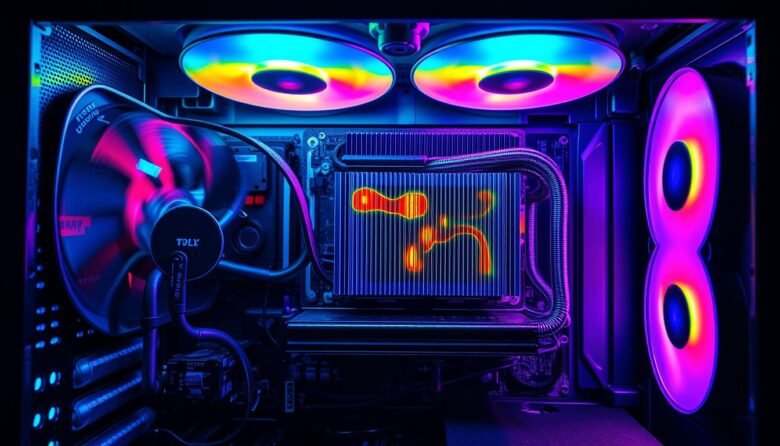
Small, targeted changes can cut your PC temperature by about 10°C and make a real difference in stability and performance. This guide shows easy, tool-light steps anyone can follow to get a quieter, more responsive rig without long hours or big cost.
We focus on the biggest wins first: move more air where it counts, improve contact at the CPU and GPU cores, and stop airflow recirculation that quietly raises heat. You’ll learn simple fixes like dusting and cable routing, plus clearly marked upgrades such as better fans or a larger radiator for liquid setups.
Each tip links to measurable results so you know what to test and what temperature change to expect. By the end, you’ll have a clear, prioritized plan and an easy maintenance routine to keep gains all year long.
Key Takeaways
- Targeted tweaks can lower temps ~10°C and boost performance.
- Start with airflow, contact quality, and dust removal.
- Use simple tests to measure real temperature changes.
- Upgrade fans or radiator only after basic fixes.
- Follow a quick maintenance routine to keep results.
Why Your PC Runs Hot: Heat Load, Airflow, and Heat Transfer Basics
Modern CPUs and GPUs can push a lot of heat, and understanding where that energy goes is the first step to controlling temps. This section explains how power draw, airflow, and surface area set the rules for safe operation.
How heat load scales with CPU/GPU power
Heat output rises roughly in line with power draw. When a processor or graphics card ramps up, the total heat the case must reject goes up by a similar percentage.
The removal rate follows Q = M × cp × dT, so flow and temperature drop are linked. Higher flow often lowers the inlet temp that each core or block experiences, improving stability under sustained load.
Why intake air temperature and differential matter
Temperature differential drives heat transfer: a larger delta between component temps and intake air makes shedding heat far easier. Cooler intake air at the front of the case is one of the cheapest, highest-impact ways to lower measured temps.
- Faster airflow keeps exit air cooler, improving overall heat transfer without new hardware.
- Larger face area on a radiator or heatsink exposes more coolant or heatpipe to cool air.
- High fin density raises surface area but can choke airflow if fans can’t push through — match fins to fan capability.
Quick Wins First: Easy Tweaks That Often Deliver a 10°C Drop
A handful of quick checks—thermal paste, dust, and fan direction—regularly yield big returns in measured temps. Start with easy, low-cost steps before moving to larger upgrades.
Re-paste and mounting pressure
Replace old thermal paste with a quality compound and apply a thin, even layer. Check that the cold plate sits flat and bolts are torqued evenly; uneven pressure traps air and raises core temperature.
Restore airflow: dust, cables, and fans
Dust clogs filters, radiator fins, and heatsinks. Use compressed air at a safe distance to clear lint without bending fins.
- Reroute cables to open a straight path from the front intake to the CPU and GPU cooler.
- Confirm fan orientation and RPM under load; flipped or stalled fans create hot spots.
- Move the case slightly off the wall for better intake clearance and test results.
If you run an AIO, check tubing for kinks and lint on the radiator. Finally, record baseline and post-fix temperature data with the same stress test so you can see real gains and decide the next way forward.
Dialing In Case Airflow: Intake, Exhaust, and Pressure Balance
A focused intake-to-exhaust plan can stop heat from lingering and give your parts noticeably cooler air. Faster airflow through a core lowers exit air temperature and improves heat transfer, so keep paths clear and predictable.
Positive vs negative pressure and dust control
Aim for slightly positive pressure—more intake than exhaust—to feed components with filtered, cooler air and cut dust ingress. Positive setups tend to keep dust out of cracks and reduce the cleaning burden.
Unblocking the grille: front panel and filter restrictions
Dense meshes, thick foam, or decorative grilles can starve a radiator or air cooler. Open the front path or swap to coarser filters so fans can move air freely.
Recirculation shields and gaps: stop hot air from looping back
Seal bypass gaps and add simple baffles so exhaust doesn’t loop to the intake. Increasing exposed face area to ambient air boosts heat rejection and helps the radiator do its job.
- Stagger intake and exhaust for a clean front-to-back stream past CPU and GPU hot spots.
- Keep cable bundles and drive cages out of the intake tract; treat it like a duct.
- Verify fan arrows and final installation to avoid dead zones.
Fan Strategy That Works: Airflow, Static Pressure, and RPM Curves
Pick fan hardware and curves with intent: the right combo moves air where a hot core needs it most. Start by matching fan type to the job—open intakes want high-airflow blades, radiators need high-static pressure models that force air through tight fins.
When to choose high-airflow vs high-static pressure fans
Use high-airflow fans on front and rear mounts with little obstruction. They push large volumes with low noise at moderate RPMs.
Reserve high-static pressure fans for radiators and dense heatsinks. They maintain flow against resistance and protect radiator performance.
Smart fan curves to cool faster without extra noise
Shape curves to react early at moderate load. A gentle RPM rise cuts peak temperature without a big noise penalty.
- Mix roles: strong front intake, targeted GPU assist, controlled exhaust.
- Calibrate: tie case fans to the higher of CPU or GPU temps so air moves when either part is hot.
- Smooth ramps: avoid sudden steps to keep sound steady and trim spikes during short gaming bursts.
Cooling system improvements
A tuned loop and unhindered airflow work together to cut component temps without extra hardware.
Increase coolant flow within safe limits to lower the fluid temperature arriving at blocks. Higher flow reduces inlet temperature and often improves stability.
Don’t push the pump so hard that you hear burbling or see microbubbles. Excessive speed can cause aeration, noise, and premature wear. Match pump curves to fan curves so the radiator gets steady air when the liquid is moving faster.
- Open intakes and seal leaks first — better airflow amplifies any loop change.
- Aim for higher coolant flow but avoid intentional restrictions; slowed liquid usually raises component temps.
- Mount radiators where they can see the coolest intake air for best heat transfer.
- Use stress tests to confirm lower peak and sustained temperature under load.
Maintain the loop: fresh coolant, clean fins, and clear filters keep both air and coolant flow high. Treat airflow, coolant, and contact quality as one coherent plan to get the best lasting performance.
Heatsinks and Radiators: Size, Thickness, and Fin Density Trade-offs
A radiator’s real power often comes down to how much of its core faces fresh, cool air. Increasing face area exposes more coolant to lower ambient air and improves heat transfer.
Face area matters more than depth in many cases. A slim 360 mm up front can beat a thick 240 mm because it presents more of the core to cool intake air.
Fin density and depth: balance, not maximum
Higher fin counts add surface area but also raise resistance. In practice, an FPI around the low-to-mid teens balances surface area with airflow.
- Prioritize face area: larger towers and radiators move more heat because they use the coldest intake air.
- Match fin density to fan power: tight spacing needs high-static pressure fans or performance drops.
- Check installation clearance: ensure the radiator and fans don’t block motherboard or GPU space during installation.
Extra rows help only when intake can push enough air. Otherwise, added depth increases resistance and raises temperature instead of lowering it.
Run controlled tests. Favor changes that lower temps at reasonable fan speeds for the best noise-normalized performance.
Liquid Cooling Gains: AIO and Custom Loop Upgrades That Matter
Placing a radiator where it sees the coolest intake air yields the clearest temperature wins. Cooler intake increases the heat transfer across the core and lowers CPU and GPU inlet temps.
Front-mounted radiators usually give the best raw drop for the CPU, while top mounts can work if you have strong front intakes. Seal gaps around the radiator so exhaust air doesn’t recycle back into the intake.
- Fan choice: use high-static pressure fans on dense fins and consider push‑pull only if the radiator is thick or fin-dense.
- Tube routing: keep hoses with gentle curves; tight bends act like kinks and reduce coolant flow.
- Pump placement: mount the pump low to avoid trapped air and orient AIO tubing to limit gurgles.
Leave space for future radiators during installation and validate changes with repeatable stress tests. Small layout tweaks often beat louder fans for real-world performance.
Pumps and Coolant Flow: Debunking the “Slow It Down to Cool More” Myth
Faster, steady flow usually beats a sluggish loop. The goal is colder liquid arriving at the block, not more time inside the radiator. Higher coolant flow reduces the top‑tank inlet temperature and improves heat transfer at the CPU and GPU.
Why higher flow generally lowers CPU/GPU inlet temperatures
Increasing coolant flow cuts the delta between radiator exit and block inlet. That colder inlet helps components shed heat more effectively and boosts real-world performance.
Staying within safe limits to avoid aeration, noise, and wear
- Don’t add restrictions to slow the loop; narrow fittings and valves raise pump load and inlet temps.
- Tune the pump RPM to a smooth mid-range to cut noise and vibration while watching temps.
- Use the reservoir as the air trap and place it before the pump inlet; check the cap and bleed thoroughly.
- Watch for aeration signs—microbubbles or burbling—and inspect for deposits that limit coolant flow.
- Run stress tests and logging to find the diminishing point where more pump speed no longer drops temperature.
Coolant Choices, Materials, and Maintenance for Reliability
Pick fluids and parts that work together to protect flow and keep temps steady. Regular care prevents corrosion and deposits that block microchannels and hurt heat transfer.
Premix vs. distilled water plus inhibitor
Premix coolants give a ready-made blend with corrosion inhibitors and biocides. They simplify service and cut the guesswork for long-term protection.
Alternatively, a 50/50 water ethylene glycol mix with a trusted inhibitor balances freeze/boil protection and corrosion control. Both choices work when you follow a maintenance schedule.
Metals, hoses, caps, and routine care
- Mixing copper/brass with aluminum parts raises galvanic risk—use strong inhibitors and refresh them on the maker’s cadence.
- Replace stained or stiff tubing and any leaking cap or worn gasket to keep pressure and prevent air ingress.
- Flush and refill on a set interval to remove biofilm and particulates; clean fluid preserves radiator cores and pump life.
- Drain fully before changing fluids—never blend unknown coolants or incompatible chemistries.
- Keep a simple log of dates, fluid type, and additives; transparent reservoirs and inline filters help you spot trouble early.
Good maintenance keeps flow high, protects pump and other components, and preserves the temperature and performance gains you earned.
Targeting Hotspots: VRM, M.2 SSD, and GPU Memory Cooling
Localized heat is often the real throttle point in a build. Small, targeted fixes drop component temps and restore steady performance without big changes to the whole system.
VRMs: add an 80–120 mm fan to push a few extra CFM across the VRM heatsinks. The airflow itself often lowers motherboard temperature enough to stop thermal throttles.
- M.2 SSDs: use a low‑profile heatsink and aim airflow at the slot; many drives stop throttling with just a little directed air.
- GPU memory: reroute intake to feed the card, or add small pads and a backplate fan to cool the memory chips.
- Layout tips: tidy cables and avoid blocking key board zones; a bottom or side intake helps long GPUs and stops recirculation near the glass side panel.
- Check radiator placement: ensure it does not starve VRMs of intake air—balance CPU and GPU needs for best overall thermal engine behavior.
- Verify gains: log hotspot sensor readings before and after changes so you confirm lower temperature and better sustained performance.
Validate the Results: Monitoring, Stress Testing, and Ambient Factors
Before you call an upgrade, verify that each change actually cut temperatures under the same conditions. Use repeatable tests and steady-state runs so you compare apples to apples.
Use repeatable tests and track deltas from room temperature
Record deltas over ambient (CPU at 55°C with a 25°C room = 30°C delta). This filters out daily swings and shows real gains.
- Run the same benchmark, for the same duration, with the same fan RPM and room point of reference.
- Warm the rig until temps stabilize before logging; steady-state values reveal sustained behavior better than spikes.
- Monitor GPU, CPU, VRM, and M.2 sensors together to avoid fixing one area while heating another.
- Track coolant and coolant flow for liquid loops; changes there often mirror radiator and air changes.
- Save screenshots and CSV logs so you can compare noise-normalized runs and justify the next upgrade.
Air warms across the core, so increased airflow lowers exhaust temps and improves heat transfer. Note intake/exhaust layout and filter status in your log to keep test order consistent. Use multiple workloads — gaming, rendering, and compile runs — to find hidden bottlenecks and confirm true performance gains.
Prioritized Upgrade Paths by Budget and Use Case
Work from no-cost tweaks to targeted hardware swaps so each step proves its value and lowers temperature measurably.
From no-cost fixes to high-impact hardware swaps
- Free start: deep-clean dust, reroute cables, open restrictive panels, reseat coolers, and tune fan curves. These often drop temps 5–10°C.
- Low-cost: add two quality intake fans or replace aged exhausts. Use stronger static-pressure fans on a tight radiator mount to increase airflow without much noise.
- Mid-tier: swap to a larger radiator or a taller air tower to increase face area for a clear single-step gain.
- High-impact: move to a 360 mm AIO or add another radiator in a custom loop if your installation allows — confirm clearance and cap, hose, and pump compatibility first.
Gaming, content creation, and small-form-factor considerations
For gaming rigs, bias intake toward the GPU area to keep frame rates steady under load.
Content creators should balance CPU and GPU cooling because both parts run hot during renders.
In small-form-factor builds, favor slim radiators and excellent fans. Avoid over-thick cores that choke limited intakes.
Pro tip: Replace aging caps, tubing, or suspect parts when you upgrade a loop, and retest temperature after each change so every dollar buys real performance.
Bring It All Together for a Cooler, Quieter PC Today
Focus on predictable changes—air path, paste, and fans—to get consistent, measurable temperature gains. Start with the easy, strong, actionable steps: clear filters, route cables, and verify fan direction. These moves often cut temps several degrees with no major expense.
When you need more, add face area—a larger radiator or taller air tower—so the core sees cooler intake air and better heat transfer. Keep fin density matched to fan strength; higher fin counts need stronger fans or flow suffers.
For liquid loops, aim for a smooth, bubble‑free loop with steady pump speed and clean coolant. Check caps and hoses, keep pressure stable, and log final temperatures. Order your fixes: airflow first, validate, then upgrade parts only where data shows a bottleneck.